Small teams often have the same document problem as large ones, just with fewer people to blame for it. A supplier sends a revised spec via email. Someone saves it to a personal Google Drive folder. A colleague downloads it, edits it, and attaches the new version to a different email thread. By the time the project reaches delivery, nobody is certain which copy is current, and the most recent file is buried three inboxes deep.
This is the document management problem that most project management tools treat as an afterthought. They offer a file tab, a basic upload button, or a link to a third-party integration, then leave teams to figure out the rest. For a 6–15 person delivery or operations team, that gap causes real delays.
Starbrix Flex takes a different approach. Built on more than 30 years of project management experience since Starbrix was founded in Finland in 1995, Starbrix Flex treats documents not as a separate module but as part of the project itself. Documents, links, and communications sit inside the same project environment as the tasks they support, so teams always know exactly where to look.
Why scattered documents cost small teams more than they realize
The problem isn't that small teams lack documents. It's that those documents live in the wrong places: personal inboxes, shared drives with no clear structure, standalone folder systems disconnected from the work they relate to.
When documents aren't tied to the project context, every status meeting becomes a retrieval exercise. "Which version did we send the client?" becomes a five-minute email search. An approval drawing gets attached to a task in one system and a chat message in another. Version confusion is almost inevitable.
The practical cost is time. The governance cost is risk: wrong drawings used in production, outdated specs sent to contractors, missing sign-offs discovered after delivery.
Starbrix Flex addresses this by keeping important documents, links, and messages connected directly to projects and tasks, reducing scattered information across separate document systems and individual inboxes. The principle is straightforward: the project is the single source of truth, not the filing cabinet.
How Starbrix Flex organizes documents: projects, folders, and structure
Every document in Starbrix Flex exists within a project context. That context can be at the project level, for documents relevant to the project as a whole, or at the task level, for documents tied to a specific activity or deliverable.
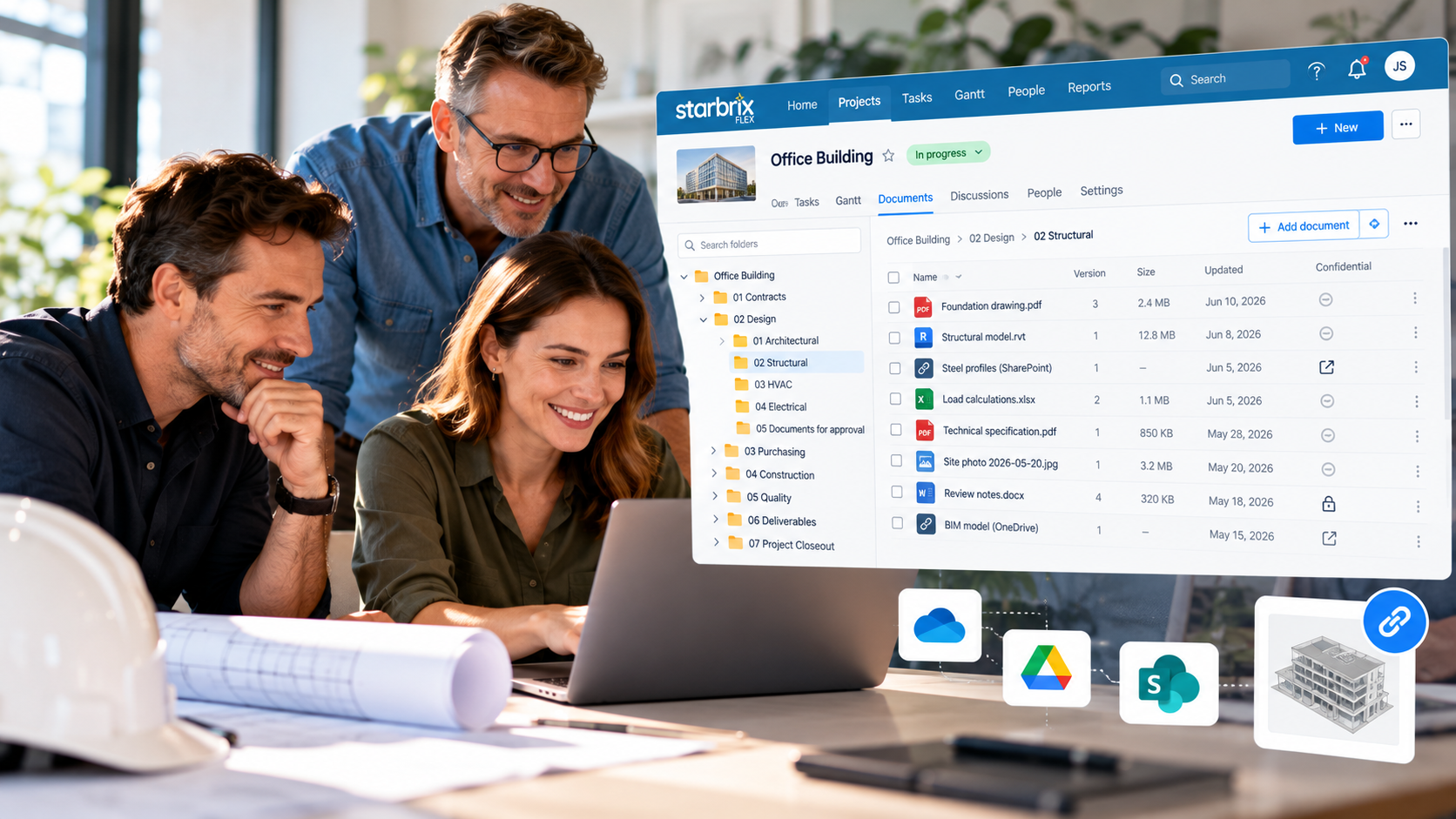
For teams with large document collections, Starbrix Flex supports a flexible folder structure with unlimited levels of subfolders. Document rows can be added at the appropriate level, making it possible to build a structure that matches the needs of each project. A construction team might organize documents by phase, discipline, document type, and individual deliverables, while an operations team might structure them by process area, workflow stage, and specific reference documents.
The key benefit is fast retrieval. Instead of navigating a shared drive with folders named after dates or initials, team members navigate to the relevant project, open the relevant folder, and find the document in context.
But the folder structure doesn't have to be built from scratch for every new project. Starbrix Flex provides several ways to standardize document structures across an organization while still allowing individual projects and teams to adapt them when necessary.
Standardize folder structures with project templates
When an organization creates a project template in Starbrix Flex, the template can include a predefined folder structure in addition to the project's tasks and other settings.
When a new project is created from that template, the folder structure is copied automatically to the new project. The project therefore starts with the document structure the team needs rather than with an empty document area.
For example, a project template could include folders for Contracts, Design, Purchasing, Quality, Deliverables, and Project Closeout, together with the appropriate subfolders beneath them.
The copied structure isn't fixed. Once the actual project has been created, the team can modify the folder structure, add new folders or subfolders, or adapt it to requirements that are specific to that project.
This provides a useful balance between standardization and flexibility: recurring projects can start with a consistent document structure without forcing every project to remain identical.
Different folder structures for different teams and operational areas
Not every team in an organization works in the same way. An engineering department may need a very different document structure from sales, product development, installation, or internal administration.
Starbrix Flex can therefore also define default folder structures for projects created from scratch.
Organizations working with different teams or departments can organize them into Operational areas in Starbrix Flex. Each Operational area can have its own default folder structure for new projects created within that area.
This means, for example, that an engineering project can automatically start with folders for specifications, drawings, calculations, testing, and approvals, while a customer delivery project can start with folders for contracts, planning, purchasing, delivery documentation, and customer acceptance.
Teams get structures suited to their work without having to recreate the same folders every time a new project begins.
Attaching files directly to tasks and projects
Document organization at the project level handles reference material and project-wide documentation. Task-level attachments handle something different: evidence, inputs, and outputs specific to an individual activity.
Starbrix Flex allows files to be attached directly to individual tasks, which is particularly useful for workflows where a document belongs to a specific step. An approval drawing can be attached to a "structural review" task, a signed change order to a "client sign-off" milestone, and a test report to a quality-check task.
Files can also be attached from the Gantt view. This is useful for teams doing their scheduling work in Gantt and wanting to associate documents with the work without switching context. Attachments are accessible directly from the relevant project or task, so a team member reviewing the work sees the relevant document right there rather than a note saying "see email."
Version control: keeping the right copy in front of everyone
Version confusion is one of the most persistent small-team problems in document-heavy projects. When a contractor sends a revised drawing, someone needs to make sure the old version is replaced, the team knows about the change, and the previous version is still accessible in case of disputes or an audit.
Starbrix Flex includes built-in document version control. The latest version of a document is always the one immediately visible and accessible. Earlier versions are preserved and remain available for reference.
If needed, an earlier version can also be made the current version again. This provides both a clear current version and access to the document's previous versions.
This removes a category of error that costs teams disproportionate time: the "which version is correct?" conversation that derails progress reviews and creates rework.
Permissions and external sharing: controlling who sees what
Not every document in a project is meant for everyone. A commercial tender document, a client-facing proposal draft, or an internal cost breakdown may need restricted visibility.
Starbrix Flex supports marking documents as confidential so they're visible only to authorized people. This is built into the document management system rather than managed through a separate access control layer.
Project documents can also be shared with stakeholders outside the team via email. The recipient gets a link and can open or download the document directly through that link without needing a Starbrix Flex account.
This handles the common scenario where a supplier, customer, contractor, or other stakeholder needs access to a specific document without becoming a user in the project's internal working environment.
Connecting to OneDrive, Google Drive, SharePoint, and other external resources
Many organizations already have documents and other project information in external systems. Starbrix Flex doesn't require them to abandon those systems.
Instead, links to folders, files, webpages, and other external resources can be added directly to projects and tasks. A project can therefore contain documents stored directly in Starbrix Flex alongside links to documents and folders in systems such as OneDrive, Google Drive, or SharePoint.
The practical difference between attaching a file and linking to an external resource matters:
- Attaching a file uploads it into Starbrix Flex. The document is stored within the project, version history can be managed in Starbrix Flex, and access is controlled through Starbrix Flex.
- Linking to an external resource adds a reference to the project or task. The file, folder, webpage, or other resource remains in the external system, while Starbrix Flex provides the project context and a direct route to it.
Access to an externally stored document continues to be controlled by the external system. A link in Starbrix Flex does not automatically give a user permission to open a document in OneDrive, Google Drive, SharePoint, or another external system.
This flexibility means Starbrix Flex can work alongside an organization's existing document infrastructure rather than requiring everything to be migrated into one system.
Large CAD and BIM files: keep them where they make sense
Engineering, construction, manufacturing, and other technical projects often work with CAD, BIM, and other specialized files that can be considerably larger than ordinary office documents.
Starbrix Flex can include these files as part of the project documentation, but it doesn't include a built-in CAD or BIM viewer. Specialized files are viewed using the appropriate external software or viewer.
For large CAD and BIM files, it may therefore make more sense to store the files in an external document system such as OneDrive, Google Drive, or SharePoint and link them to the relevant project, folder, or task in Starbrix Flex.
This keeps the document connected to the project context in Starbrix Flex while allowing the file itself to remain in the document environment best suited to storing and working with large technical files.
Storage, security, and online access
Starbrix Flex supports several ways of handling project information:
- Uploaded documents: Files can be stored directly within Starbrix Flex and connected to the relevant project or task.
- External documents and resources: Links can connect projects and tasks to files, folders, webpages, and other resources stored in external systems.
- Specialized files: Files such as CAD and BIM documents can be stored or linked as part of the project documentation but are viewed using appropriate external software.
- Security and confidentiality: Access controls determine who can access project information, and individual documents can be marked as confidential to restrict access to authorized users.
- Online access: Starbrix Flex is a browser-based cloud service and requires an internet connection. It does not provide an offline document mode or synchronize project documents to a local offline repository.
Step-by-step: how a small delivery team uses Starbrix Flex for documents
The following walkthrough covers a 6–15 person operations or delivery team managing projects with a mix of internal documents, external-facing materials, and task-level evidence.
Step 1: Create the project. Start with a project template that matches your team's workflow if one is available. The template can contain both tasks and a predefined folder structure, giving the new project a ready-made structure from the start. If there is no suitable template, simply create a new project from scratch and add the tasks you need.
Step 2: Start with the document structure. If the project was created from a template, its predefined folder structure is automatically copied to the new project. A project created from scratch can also receive the default folder structure defined for the organization or its Operational area. You can then modify the structure for the individual project and add folders or subfolders whenever needed.
Step 3: Add project documents. Store project-wide documents in the appropriate folders. Depending on the document and your organization's way of working, you can either upload the file to Starbrix Flex or add a link to a document or resource stored in another system.
Step 4: Attach task-specific documents to the right tasks. When a drawing needs approval, attach or link it directly to the relevant review task. When a test report comes in, connect it to the quality task. Team members working with the task can then find the related information in the right context.
Step 5: Link to documents and resources already stored elsewhere. For files, folders, webpages, or other resources held in external systems, add a link from the relevant project, folder, or task. This can be particularly useful for large CAD or BIM files stored in OneDrive, Google Drive, SharePoint, or another specialized document environment.
Step 6: Manage revisions with version control. When a supplier submits a revised specification for a document stored in Starbrix Flex, update the document. The latest version becomes the current one, while earlier versions remain accessible for audit or reference. If necessary, an earlier version can be made current again.
Step 7: Share with a customer or supplier via email. When a customer needs to review a deliverable document, share it directly from Starbrix Flex via email. The recipient receives a link and can open or download it without needing an account.
Step 8: Use the project as the single point of reference. At the next status meeting, document questions have a straightforward answer: go to the project, navigate to the relevant folder or task, and find the document or link. No inbox searching. No version disputes. No "I thought you had that."
Frequently asked questions
Does Starbrix Flex replace our existing cloud storage?
It doesn't have to. Starbrix Flex supports both storing files directly within projects and linking to files, folders, webpages, and other resources held in external systems. Teams can use one approach, the other, or both depending on their workflow and requirements.
Can we use the same folder structure for every new project?
Yes. Project templates can contain predefined folder structures that are automatically copied to new projects created from those templates. Starbrix Flex can also define default folder structures for projects created from scratch.
Can different teams have different default folder structures?
Yes. Different teams or departments can be organized into Operational areas, and each Operational area can have its own default folder structure. New projects can therefore start with a document structure tailored to the way that particular part of the organization works.
Can we change the folder structure after a project has been created?
Yes. The folder structure copied from a template or created by default can be modified for the individual project. Teams can add or change folders and create additional levels of subfolders as needed.
Can we share documents with people outside our team?
Yes. Starbrix Flex supports sharing project documents with external stakeholders via email. Recipients receive a link and can open or download the document directly without needing a Starbrix Flex account.
How does Starbrix Flex handle confidential documents?
Documents can be marked as confidential and restricted to authorized users. Sensitive commercial, contractual, or other project documents can therefore be stored within a project without being visible to everyone participating in the project.
Do we get version history?
Yes. Starbrix Flex includes built-in document version control. The current version is presented by default, while earlier versions are preserved and remain available for reference.
Can we restore an earlier version?
Yes. Earlier versions are preserved and accessible, and an earlier version can be made the current version.
Can Starbrix Flex work with documents stored in other systems?
Yes. Projects and tasks can contain links to files, folders, webpages, and other external resources. For example, teams can connect project information in Starbrix Flex with documents stored in OneDrive, Google Drive, or SharePoint. Access rights to those resources continue to be controlled by the external system.
What is the best approach for large CAD or BIM files?
Large CAD, BIM, and other technical files can be kept in an external document system such as OneDrive, Google Drive, or SharePoint and linked to the relevant project, folder, or task in Starbrix Flex. This keeps the file connected to the project while allowing it to remain in a system suited to storing and working with large technical files.
Can Starbrix Flex display CAD or BIM files?
Starbrix Flex doesn't include a built-in CAD or BIM viewer. These files are viewed using the appropriate external software or viewer.
Can we work with Starbrix Flex documents offline?
Starbrix Flex is a browser-based cloud service and requires an internet connection. It does not provide an offline document mode or local document synchronization.
Is document access controlled by roles or permissions?
Yes. Starbrix Flex includes access controls for project information and documents, including the ability to restrict confidential documents to authorized users.
For small teams comparing project management tools with document management in 2026, the deciding factor usually isn't whether a tool has a file attachment feature. Most do. The question is whether documents are genuinely connected to the work, with proper version control, controlled access, external sharing, standardized folder structures, and links to existing document systems built into the project environment.
Starbrix Flex's answer, shaped by Starbrix's more than three decades of project management experience, is to make documents part of the project from the start.